Showing posts with label iphone. Show all posts

HOW TO CONVERT AND WATCH A DVD ON YOUR PSP, iPOD,iPHONE !!!


Would you like to be able to watch a DVD on your iPod, PSP or mobile phone without doing anything very technical and for free? Movie2X DVD Ripper is a simple to use DVD conversion program that allows you to convert a regular or protected DVD into the most popular video formats, such as AVI, MP4, PSP and more.


It also lets you convert between formats, i.e. AVI to MP4, MOV to MPG, etc.


The software supports the iPod, PSP, Mobile Phone, Archos, Microsoft Zune, and Creative Zen formats.


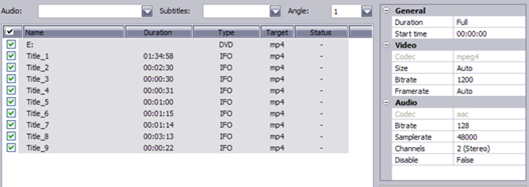
The interface is easy for beginners, but has lots of options and preferences for advanced users also, such as the bit rate, frame rate, sample rate, etc. It also supports other formats such as xVid, DIVx, and H263 (high-definition).


I really like this program because it supports some of the more advanced features of DVD’s, such as the higher quality audio codecs, subtitles, and different angles.


It also includes a DVD/Video player to preview files. You can also change the video aspect, so if the DVD is wide screen, but you’re going to watch it on your iPod, you can convert the DVD into the regular 4:3 aspect ratio.


Also, converting a full DVD might be become too large for your mobile device, so you have two options, either convert only a portion of the film or split the outputted file into multiple files.


You can also take out the audio and video separately since the streams are processed individually. There are also other cool features like the ability to offset the subtitles or change the color of the subtitles.


Once you’ve installed the software, simply pop in your DVD, and either go to File and choose Add DVD, or click on the DVD button underneath the white text box.


The program will read the DVD and display the title and chapter information. You can choose which titles you want to convert. This is good because you can uncheck all of the really short chapters, which are probably previews or interviews, etc.


Next, you want to choose the “Profile” or what you want the DVD to be converted into. You can also choose the zoom options: Keep Aspect, Medium, Letterbox, and Pan and Scan. Type in a name for your file and if you want to split the files, you can choose from 650 MB, 700 MB, 800 MB CD, 4.7 GB DVD, or a custom size.


Choose the output folder and click Convert! The amount of time it takes to convert will depend on what files type you are converting to and the speed of your computer’s processor. Make sure you have enough free space on the destination drive before converting.

Discover how To Troubleshoot & Repair All PS problems: Get The Ultimate PS Repair Guide Here
Discover How To Play All PS Games In One - The Unlimited Power of PS Blender
PS Unlimited Game Store
Discover How to Watch Satellite Tv on your PC,PS ,Games,iPod,iPhone...
PSP Nerd - Games,Movies & Music
PS Downgrading Guide
PS X Studio - Softwares
PS Wizzard
Complete PS Softwares+Wallpapers
PS Movie Downloads Site
PS King:Movie,Game,Music Downloads
Complete PS Game Store
PS Downloads World
PS Movie,Blender,& Unlimited Games Downloads
A New PS Website
iPhone Movie,Music, & Unlimited Tn Downloads
Complete PS Gamer Media Download
How To Feed Your PS Perfectly
Complete Animated PS Downloads Umlimited
Exclusive PS Video Guide: A to Z
PS Repair Guide: A to Z


HOW TO DOWNLOAD YOUTUBE VIDEOS AND WATCH ON YOUR iPod, PSP or mobile phone !!!


Do you watch YouTube videos? Do you wish you could somehow save these video’s to watch at your leisure or share with others?


Do you want to download these YouTube clips to your iPod, PSP or mobile phone? Yes?


Well up until recently, to download a YouTube video you needed a ‘paid for’ software package. Now there is a freeware converter tool readily available for download that does just the job.


It is called the Free YouTube to iPod Converter and it does all this for you in 3 quick and easy steps;


1) Launch an Internet browser session for YouTube and navigate to the video clip you want. Copy the URL link address of the video.


2) Launch Free YouTube to iPod Converter and paste the URL link address of the video file into the ‘Input video file or YouTube URL containing video’ field.


3) Choose the destination location for the ‘Output file’ to be created and click ‘Download & Convert’. That’s it! The video will be converted.


The input URL picks up the location of the video on YouTube, the converter software then picks up the FLV formatted YouTube file, downloads it to specified output file and converts it to the required MP4 format.


It is then a case of just locating the file on your computer and dragging/dropping it into your media device. The whole process only takes a couple of minutes, even to download the longest YouTube clips and you will have MP4 format video ready for uploading to your media device or mobile phone.


You can change the settings for the download so that the conversion is in iPod, PSP, mobile phone or MP3 audio format, and there are 4 presets to set the quality of the video – Highest, High, Standard and Economy.


In my experience I always use the Highest or High settings. Even if you are so short of memory that you are thinking of reverting back to floppy’s, you still will not need to reduce the quality of your download to Standard or Economy as the files are never that big. For information, the default setting is for iPod conversion.


Note: This program is Freeware and contains no Spyware or Adware.


Discover how To Troubleshoot & Repair All PS problems: Get The Ultimate PS Repair Guide Here
Discover How To Play All PS Games In One - The Unlimited Power of PS Blender
PS Unlimited Game Store
Discover How to Watch Satellite Tv on your PC,PS ,Games,iPod,iPhone...
PSP Nerd - Games,Movies & Music
PS Downgrading Guide
PS X Studio - Softwares
PS Wizzard
Complete PS Softwares+Wallpapers
PS Movie Downloads Site
PS King:Movie,Game,Music Downloads
Complete PS Game Store
PS Downloads World
PS Movie,Blender,& Unlimited Games Downloads
A New PS Website
iPhone Movie,Music, & Unlimited Tn Downloads
Complete PS Gamer Media Download
How To Feed Your PS Perfectly
Complete Animated PS Downloads Umlimited
Exclusive PS Video Guide: A to Z
PS Repair Guide: A to Z


iPhone Tips and Tricks - Get the Most Out of Your iPhone Experience

iPhone Tips and Tricks - Get the Most Out of Your iPhone Experience
By Chris Prato


All of us folks who are lucky enough to already have an iPhone know how much fun they can be just to play around with. Playing with my iPhone a lot myself, I have discovered some cool tips and tricks that you may find useful.


1. If you tap once at the very top of the screen when you are on the internet, it will take you back to the top of the window rather than having to scroll all the way back up. A nice time saving feature.


2. If you set the font to the smallest size, you can read more in the internet window. An advantage of this is that when you want to click a link, you can pinch (expand) that area and the link will come up very large, making it much easier to click.


3. Rather than posting the full address of internet sites in bookmarks, you can post the equivalent RSS address instead into Apple's RSS reader and save that as your bookmark. This way you can quickly see if there's anything interesting on your favorite site rather than downloading the whole homepage.


4. If you are writing something and the iPhone flags a word as misspelled that you know is not misspelled, cancel the correction 3 times and the word will be put into the dictionary. If you write a lot, this feature is quite useful!


5. The magnifying glass is a nice iPhone tool when you are typing an email or any other text. If you tap once and hold, a magnifying glass will pop up showing you a zoomed in view of your words and cursor. You can now easily place the cursor wherever you want. This makes editing your writing very easy.


6. You can move icons around, but not on the home screen. You have to go to the ipod section. Go to iPod > More > Edit. Now you can drag your icons all around. This can also be done in the phone section.


7. To reset your iphone, hold down the right button and the "home" front button for about 6 seconds. To power it back on, push the top button. This is different than a regular shutdown, which can be done easily by holding the sleep/wake button for 6 seconds.


8. If you get a lot of spam e-mail or other unwanted e-mail, pay attention to this time saving feature. Add a link to Yahoo mail in Safari bookmarks. From there you can check 'delete all' to remove all unwanted e-mails. This is much easier than deleting hundreds of spam e-mails one at a time.


If you want to be able to download all sorts of music and movies for your iPhone, check out my other article about iPhone Download Sites.


I hope you found these iphone tips helpful. If you have an iPhone and have been wondering how best to fill it up with music and movies, check out Top iPhone Downloads for the latest reviews of iPhone download sites.


Rich articles here. As experts in the field of psp gaming console , we can help you find the following on the internet: psp videos, psp down;oad unlimited, how to feed your psp, psp gamer media download, iphone music and movies, complete psp game house, psp kings palace, unlimited psp games, psp blender, psp downloader, new psp website, psp movie download site, psp free softwares+wallpapers, psp downgrading,psp Nerd-games,movies+music, pspwizard, psp dynamic movie site, psp X studio, xbox 360 repair guide, psp repair guide, console updates, psp themes....keep visiting hereThe internet search engines have been vluable in tracking news and updates about psp console:Google